The topic I’m about to discuss sits at the edge of Compliance, Information Protection and Identity and Access Management (IAM). Let’s assume you already implemented Microsoft Purview Information Protection labeling. You have a label called top secret, and it encrypts the file when it’s assigned. The user did not share it with anybody and left the company. How do you gain access to the file and it’s content that is encrypted? This is where super users come to the picture. “The super user feature of the Azure Rights Management service from Microsoft Purview Information Protection ensures that authorized people and services can always read and inspect the data that Azure Rights Management encrypts for your organization. If necessary, the encryption protection can then be removed or changed."[1] This feature is not enabled by default, so if you want to take advantage of it you’ll need to set it up first. There is a way to configure super users without compromising on zero trust, and this is what I’m going to show you.
1Install-Module -Name AIPService
Once the module is on your machine, you need to connect to the service
1Import-Module AIPService
1Connect-AIPService
If this it the first time you use the Azure Rights Management, you need to enable the super user feature
1Enable-AipServiceSuperUserFeature
To verify, that the action was performed corretly, you can run the following command. “Enabled” is the expected value for a successful feature enablement.
1Get-AipServiceSuperUserFeature
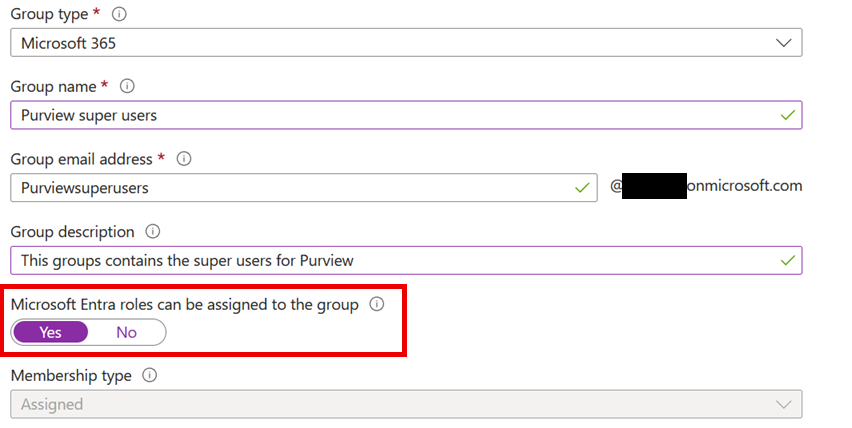
Now that the feature is turned on, we can set up a dedicated super user group in EntraID. You must enable the “Microsoft Entra roles can be assigned to the group” option, like you can see it in the screenshot
Once the group is created, you should open it and click on the Privileged Identity Management option for the group. By default, the owner of the group (who created it) will be assigned to the group as an active assignment. To comply with the zero trust principles, you may remove that active assignment and use only eligible ones. You have to add your dedicated users as an eligible assignment. Note, that the maximum eligible assignment is one year.
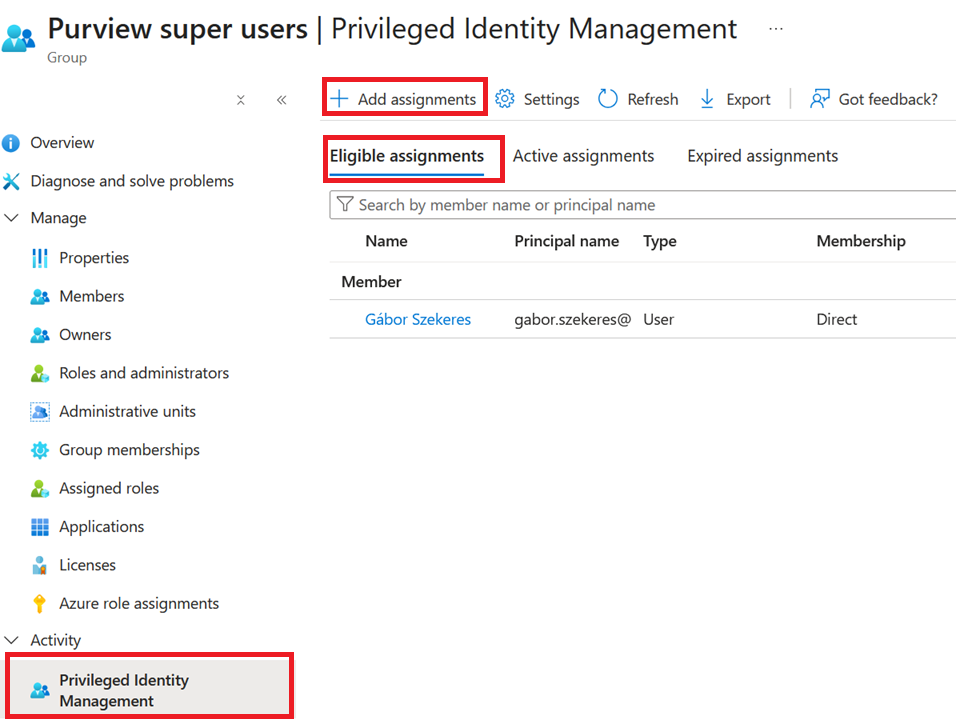
Since we have now a dedicated EntraID group for our super users, we can assign this group to the super user role for Purview. We’ll need to switch back to powershell again.
1Set-AipServiceSuperUserGroup -GroupEmailAddress yournewgroup@yourtenant.com
You’ll get a verification message in powershell upon successful execution, but if you want to be extra certain, you can run the following command:
1Get-AipServiceSuperUserGroup
That’s it. We achieved to give a user permission to decrypt or change encryption on files using Just-In-Time access. The user that is eligible for the group can activate the membership under Privileged Identity Management > My roles > Groups. In my experience, it takes time for the role to take effect, for me it was almost 1 hour before the super user permissions were kicked in.
Reference [1]: https://learn.microsoft.com/en-us/purview/encryption-super-users